Digital Photo ExposuresUnderstanding Histogramsby Sue BarthelowWhether a histogram comes from a camera or from photo processing software, it gives you valuable information about your photo. Having a basic understanding of what a histogram shows about an image may help you make improvements. At the very least, it will give you a better understanding of your photo's exposure. In the Using Your Camera's Histogram tutorial, I discussed using the histogram displayed on a digital camera's monitor to help get better exposures. I mentioned that the left side of the graph is for showing pure black and the right side is for pure white. Middle gray is in the center of the graph. The height of any point on the graph indicates the number of pixels that have the value represented by that point. I also said that you should try to adjust your camera settings so that the graph of an image does not run off either the left or right sides of the histogram. But what does all that really mean? A histogram is all about an image's exposure. It tells you if your image is underexposed, overexposed or just right. It also tells you how balanced your light, dark and in-between values are. You probably know that colors have lightness values. As an interesting exercise, convert a color photo to black and white and look at its histogram. Compare the image with its histogram to get an idea of how the image's converted colors range across the scale. The graph shown on a histogram has a shape that reveals all kinds of information about your image. Does your photo have too much contrast? Is it dull and lacks visual interest? Learning how to interpret a histogram and then putting what you've learned into practice will help you improve your photos. Tweaking Your ExposureRemember what I said about finding an exposure setting that results in a histogram whose values don't run off either the left or right edge? Well, that's only part of the story. Even when the histogram values stay within the frame, a photo may be under or over exposed. The histogram's shape tells you if you can improve your image by changing the exposure in-camera and taking another photo or by using software tools to change the image's exposure. |
|
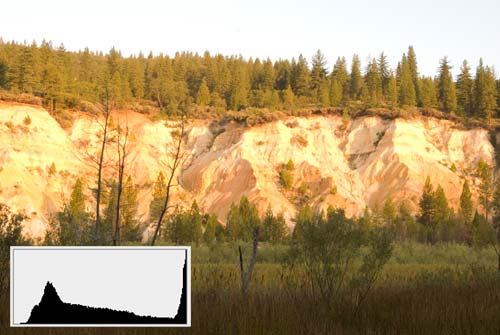
Overexposed Landscape

Corrected Exposure Landscape
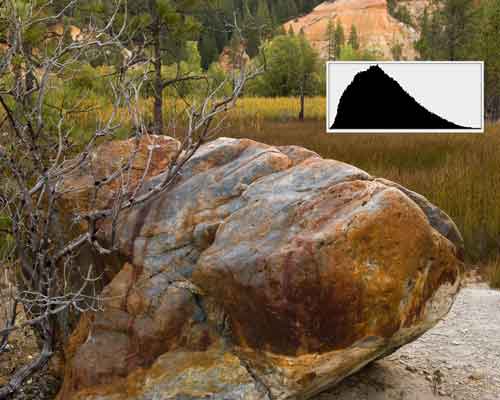
Bell Curve

Light on Dark Background
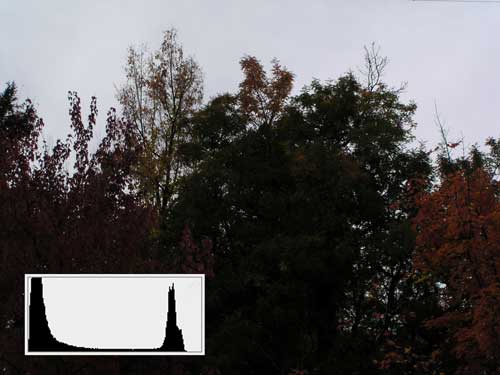
Lost Detail
|
When the graph shows values that lie entirely on either the left or right side with the opposite side empty of values, your image's exposure can be improved. Keep in mind that some images are meant to look like this. If you intend your photo to be a high or low toned image, you'll expect its graph to be lopsided. A well-exposed image will have values that reach for both the left and right edges. Don't worry about where the peaks and valleys lie, just watch the edges. The peaks and valleys show the number of image pixels that have the corresponding value. You can change the peaks and valleys by using exposure compensation or metering on something slightly lighter or darker. A graph that does not have values that reach for both edges indicates that your photo is probably either too dark or too bright. Unless you were trying to get that particular effect, either take another photo at a different exposure setting or change the exposure using your software. Photoshop's Shadow/Highlight tool works well for making large adjustments to an image's exposure. Another tool, Levels, has sliders that work well for slight changes. The Levels tool also lets you select what should be white, black and middle gray in your image. That works well for some problem images. Bell Curve ImagesAn image with a wide range of mid-tone colors and a bit of both light and dark areas has a histogram that shows a bell curve. Most of the peaks lie in the middle of the graph. The heights dip to nothing at or near the edges. The curve's shape depends on the distribution of the middle tone pixels. There is no right or wrong shape to the curve. You are in control of your image's exposure and should adjust it to please yourself. As shown in the Bell Curve example photo, the center of the highest point of the graph is to the left of middle. This is because there are more dark middle tone pixels than absolute middle or light middle tone pixels. High Contrast ImagesA high contrast image's histogram will have one or more peaks that lie at or near one or both of the edges. An image that has lots of white background with a smaller dark subject will have a graph with a tall peak at the right edge. On the other hand, an image that has lots of black background with a small light subject will have a graph with a tall peak at the left edge. In both of these cases, as long as your graph shows that the image has pixels that run along the width of the graph, your exposure is probably as good as you can get it. If you want to down-play the darkness or lightness of an image like one of these, you might be able to crop out some of the background. An image that has lots of both light and dark areas will have a graph with tall peaks at both edges. The middle of the graph will vary depending on the range of mid tone color or gray values in the image. If a graph like this is low in the middle, it indicates that you have probably lost detail in the dark, light or both regions. If that isn't what you were looking for, you may be able to change the exposure to reveal more of the dark or light area details. Using the Shadow/Highlight tool, Photoshop lets you lighten the shadows and darken the highlights to bring the contrast down and to bring back some detail. Wrapping it upTo get better exposures more of the time, experiment and check the results. Use your camera's or your software's histogram and see how the curve changes as you change your exposures. Have some fun with it and even make some wild changes to see what happens. You may be pleasantly surprised with the results. |